
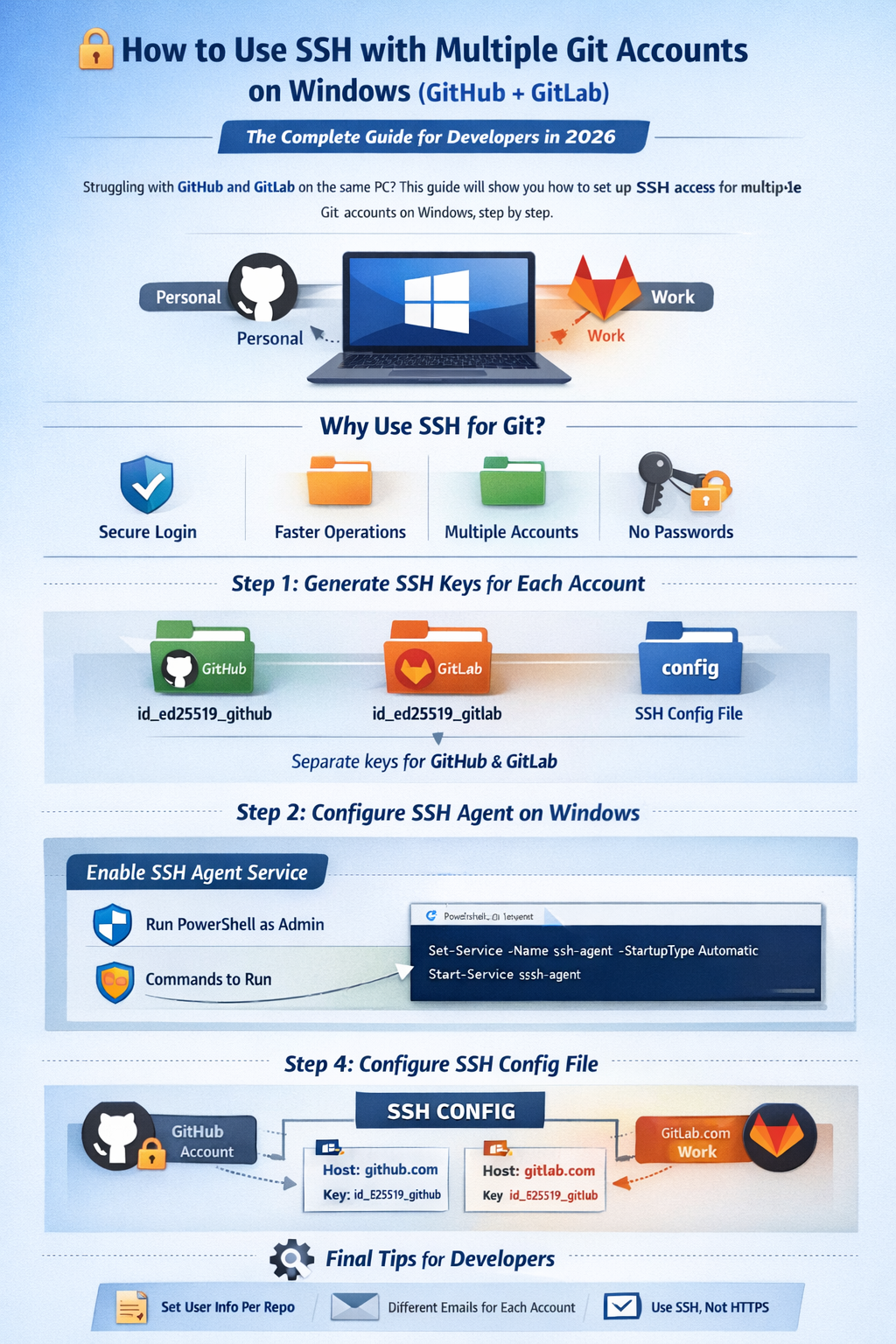

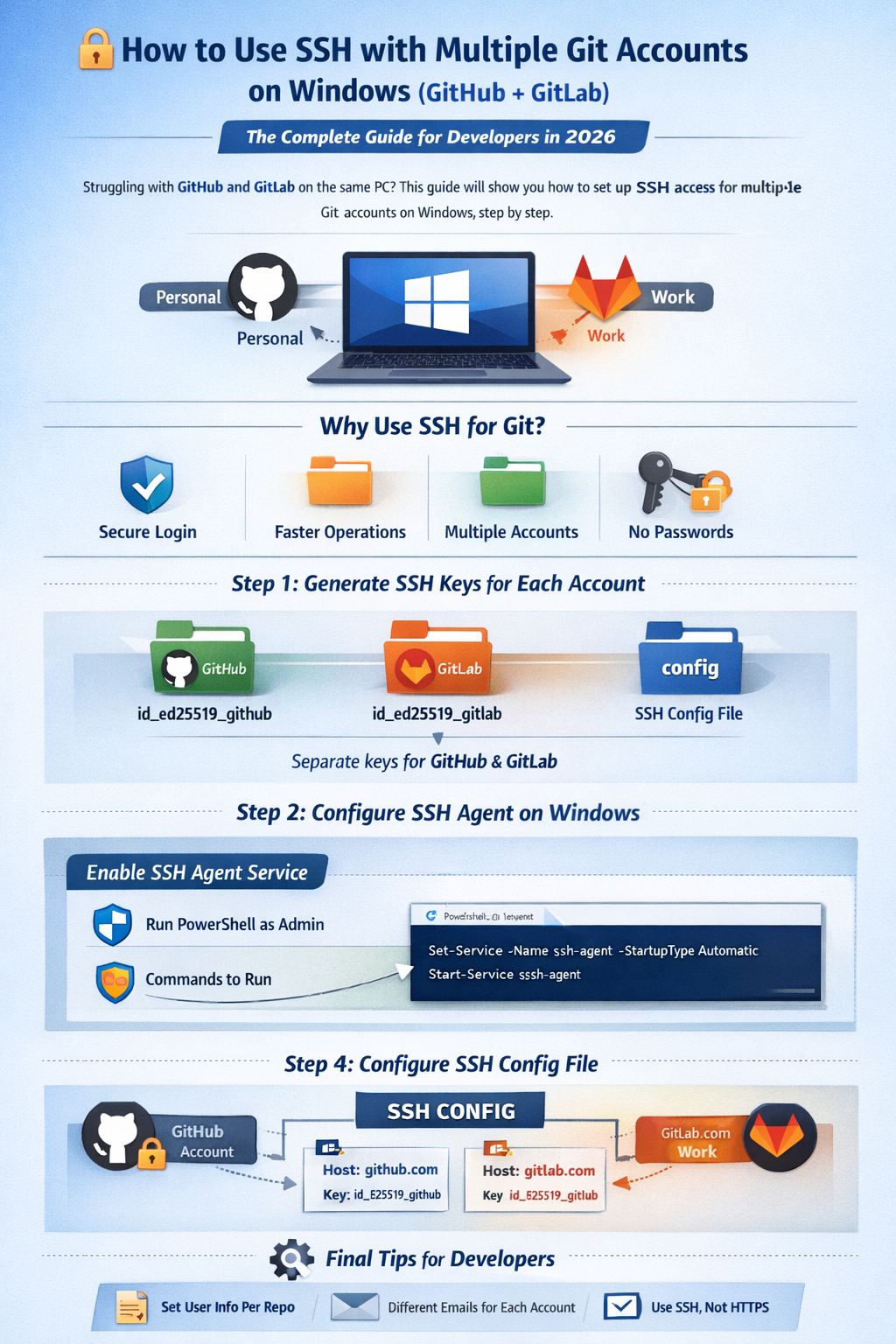
🚀 The Complete Professional Guide (2026)
Managing multiple Git accounts on the same machine—like a personal account on GitHub and a work account on GitLab—can quickly become messy if not set up correctly.
This guide shows you how to configure SSH authentication on Windows to securely connect and manage multiple Git accounts without conflicts.
🧠 Why Use SSH for Git?
Using SSH instead of HTTPS offers major advantages:
- 🔒 Secure, passwordless authentication
- ⚡ Faster Git operations
- 🔁 Seamless multi-account management
- 🧩 No credential conflicts
🧰 Prerequisites
Before starting, ensure you have:
- Git installed
- A Windows system
- Accounts on GitHub and GitLab
🔑 Step 1: Generate Separate SSH Keys
You need one SSH key per account.
GitHub Key:
ssh-keygen -t ed25519 -C “your_github_email@example.com”
Save as:
~/.ssh/id_ed25519_github
GitLab Key:
ssh-keygen -t ed25519 -C “your_gitlab_email@example.com”
Save as:
~/.ssh/id_ed25519_gitlab
📊 Visual Diagram: SSH Key Structure
Your Computer (.ssh folder)
│
├── id_ed25519_github → GitHub Account
├── id_ed25519_gitlab → GitLab Account
├── config → Routing rules
⚙️ Step 2: Enable SSH Agent (Windows Fix)
⚠️ Important: Windows does NOT use eval like Linux/macOS.
Run PowerShell as Administrator:
Set-Service -Name ssh-agent -StartupType Automatic
Start-Service ssh-agent
➕ Step 3: Add SSH Keys to Agent
ssh-add $env:USERPROFILE\.ssh\id_ed25519_github
ssh-add $env:USERPROFILE\.ssh\id_ed25519_gitlab
🔄 Visual Flow: Authentication Process
Git Command → SSH → SSH Agent → Correct Key → GitHub / GitLab
🌐 Step 4: Add Keys to Git Platforms
GitHub:
cat ~/.ssh/id_ed25519_github.pub
Add to:
Settings → SSH Keys
GitLab:
cat ~/.ssh/id_ed25519_gitlab.pub
Add to:
Preferences → SSH Keys
🧩 Step 5: Configure SSH (Most Important Step)
Edit:
~/.ssh/config
Add:
# GitHub
Host github.com
HostName github.com
User git
IdentityFile ~/.ssh/id_ed25519_github
# GitLab
Host gitlab.com
HostName gitlab.com
User git
IdentityFile ~/.ssh/id_ed25519_gitlab
🧠 Visual: How SSH Config Routes Requests
git@github.com → uses → id_ed25519_github
git@gitlab.com → uses → id_ed25519_gitlab
✅ Step 6: Test Connection
ssh -T git@github.com
ssh -T git@gitlab.com
Expected:
Authentication successful ✅
📦 Step 7: Clone Repositories
GitHub:
git clone git@github.com:username/repo.git
GitLab:
git clone git@gitlab.com:username/repo.git
🔥 Advanced: Multiple GitHub Accounts
If you have work + personal GitHub accounts:
Host github-work
HostName github.com
User git
IdentityFile ~/.ssh/id_ed25519_work
Host github-personal
HostName github.com
User git
IdentityFile ~/.ssh/id_ed25519_personal
Clone using:
git clone git@github-work:username/repo.git
⚠️ Common Errors (And Fixes)
❌ eval is not recognized
✔ You are using PowerShell → use SSH service instead
❌ Error 1058 (ssh-agent)
✔ Service disabled → enable using admin PowerShell
❌ Permission denied (publickey)
✔ Fix by:
- Adding keys using ssh-add
- Checking .ssh/config
- Using SSH URL (not HTTPS)
💡 Pro Tips
- Use different emails per account
- Set repo-specific identity:
git config user.name “Your Name”
git config user.email “your_email@example.com”
- Keep .ssh/config clean and readable
🏁 Conclusion
Setting up SSH for multiple Git accounts on Windows is a one-time effort that pays off in long-term productivity and security.
With separate SSH keys and proper configuration, you can seamlessly manage repositories across platforms like GitHub and GitLab—without ever worrying about authentication conflicts again.
📢 Final Thoughts
If you’re serious about development workflows, SSH is not optional—it’s essential.
Master it once, and your Git experience becomes smooth, secure, and scalable.